Followers

Sunday, 22 January 2023

Teaching Sprints - How overloaded Educators can keep getting better by Simon Breakspear and Bronwyn Ryrie Jones

Takeaway points: 

Starting prompt: What is something you do in class in the classroom now more effectively than you did six months ago? 

Sprint = short, sharp bursts of practice improvement work (truly manageable shifts - evidence-informed)

Collaborative process

Process: 

1. Prepare Phase (1 or 2 meetings) 60 - 90 minutes each

- Engage in new learning, informed by research evidence

- Draw out connections and challenges to practice (Boulder, Pebble, Sand protocol)

2. Sprint Phase (2 - 4 weeks)

- Intentionally practice the chosen strategy/technique in classrooms

- Make adjustments, in light of what's happening

- Check-in with colleagues to sustain momentum. (15min stand up meeting)

3, Review Phase  60 minutes

Reflect on: What was our experience of the Sprint? What can we reasonably conclude from the impact evidence we have? What are the implications for practice? What are the next steps for our professional learning?

WHAT TO REMEMBER:

1. Teaching Sprints is a flexible process for teacher learning and continues practice improvement

2. Each individual Teaching Sprint consists of three phases: Prepare, Sprint, Review

3. In most settings, teachers can comfortably complete one productive Teaching Sprint every term of school. 

4. Each phase of a Teaching Sprint involves a different mode of learning

5. The Prepare Phase enables teams to engage with research evidence, make connections to practice, and define a specific strategy/technique that they would like to trial

6.  The Sprint Phase supports teachers in bridging theory and practice; they intentionally practise a selected strategy/technique in classrooms

7. The Review Phase provides the opportunity to reflect on experiences, review impact evidence and determine implications for future practice

8. All phases are supported by simple protocols that teams can use to drive collective thinking and action. 

9. Teaching Sprints is designed to make improvement work habitual in your school.

10. The composition of teams in Teaching Sprints is flexible but the recommendation is 3 - 8 people. 

11. There are only 2 roles - Sprint Leader and Team Member

12. A review of our current meeting schedule can be used to identify potential blocks of time that can be reallocated for Teaching Sprints.

13. For each Teaching Sprint, teams need the time for a Prepare meeting, a Check-in, and a Review meeting.

14. Setting a schoolwide focus for Teaching Sprints can promote the efficient sharing of evidence and resources. 

15. What's most important is that Teaching Sprints works for you in your context - adapt it flexibly and thoughtfully for your team and school. 

So what's next?

1. Check with senior management if we are starting term 1 or 2

2. Check schedules and add them to the calendar

3. Plan for meetings

4. Decide with Snr Management if we will present the area that we want to make shifts in e.g. HITS, or whether we will open it for teams to decide where they want to improve. 

5. Contact Louise from Papakura Central, and ask if I can observe a Sprints meeting. Get the background of how they approached it. 


Monday, 21 November 2022

MIT 2022 Project Summary

As I reflect on my participation in the Manaiakalani Innovative Teachers project (MIT) project throughout the year, I realize the growth I went through.  Through the design thinking process, I developed a formalized question about the problem I experienced and grew brave enough to put my project out there in the wider community to receive feedback in order to make it better. Here is a summary of what the process looked like. 

When our leadership team looked at our data we realized that the data was particularly low in classes where Beginner Teachers and Overseas Trained Teachers taught. I came up with the question, what could I do to help these teachers, so that they don't waste time trying to figure out what to do, as in the time wasted, our students are either taught at the wrong level or taught the wrong topic, or not taught at all, which puts them at a disadvantage. Through the design thinking process and the help of my MIT colleagues, we refined the question to this: How might we support teachers starting at a new school where there is a complex array of new learning needed to be effective in the classroom. Then the question arose, what tool could I create that will actually be of use to these teachers.

I came up with the idea of a site where new teachers could find the most important information in order to speed up their adjustment to school life. After receiving feedback on my survey that I shared on the Teacher's FB page, I determined that the 3 most important areas of concern are assessments, planning, and resources.


My prototype was very boring, had no images, had too many contrasting coloured bars, and had some very old youtube videos. In order to make my site better, I shared it with as many people as possible and took on the feedback and advice. I tried to bring in an element of fun by changing the name to Survival Kete for New Teachers, With the change of name, I could bring in some elements of a kete, therefore the drop-down menu on the images of the kete's.

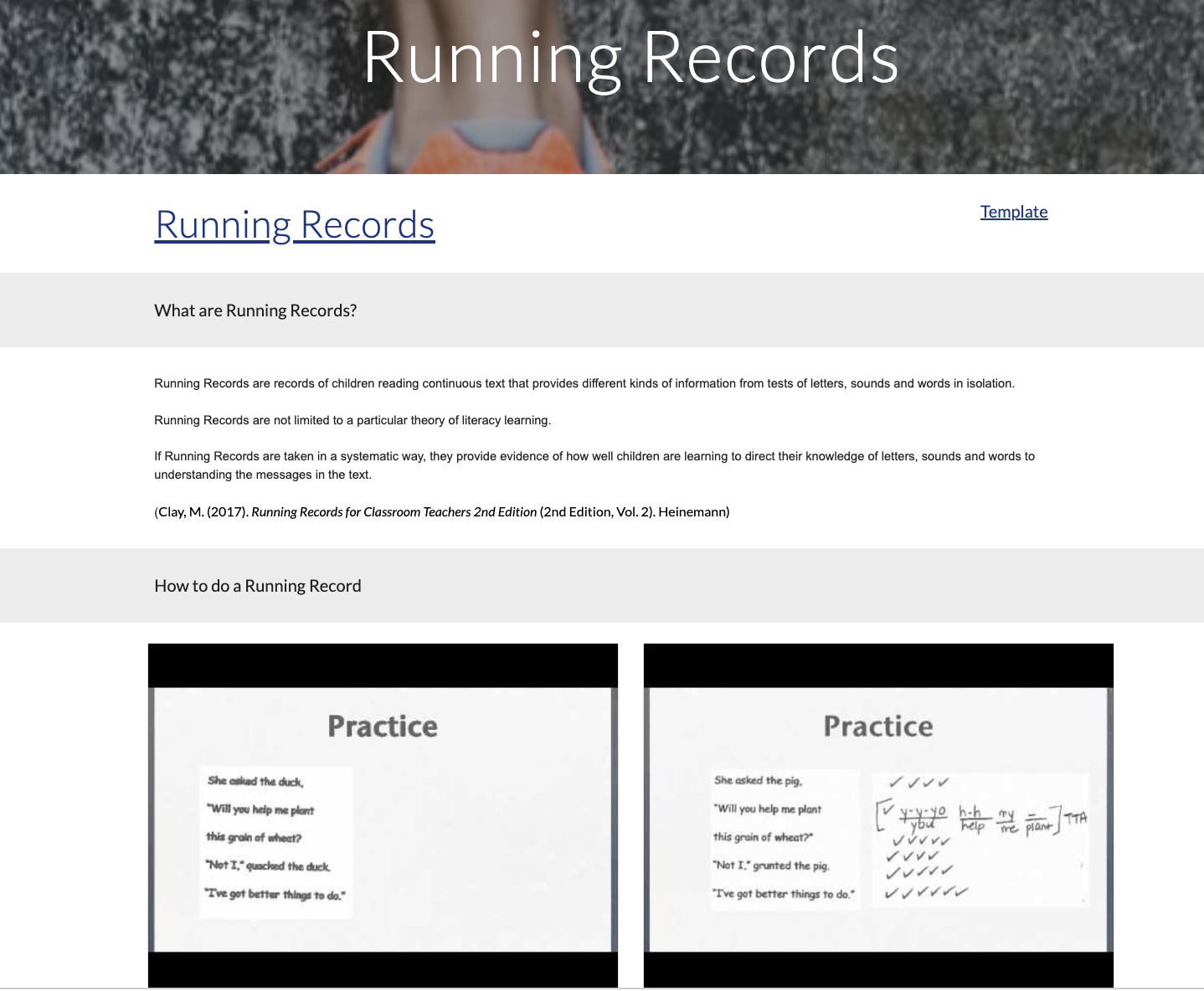
I even asked for feedback from a Reading Recovery Facilitator. She reviewed my Youtube demo videos on Running Records and gave me feedback on how I could do that better. All in all, I was able to refine my prototype to what it is now, due to lots and lots of feedback from people. I had to be brave to take the feedback on board, and willing to rethink and refine my project. So how can new teachers use my site? 

When teachers open the site, they can make a copy of the tracking sheet to keep track of the new learning they have completed. 


They can then choose from either the kete drop-down menu or click on the images to take them where they want to be, either assessments, planning, or resources. 
Then it's pretty straightforward, they choose what they want to learn about. And read up, or watch videos. 


The site contains the following information: Information on Running Records, PAT Maths, PAT Reading, Writing Vocab, Jam, Gloss, Online assessment and data, the process of planning, online resources, and abbreviations and acronyms.

The final stage of the program was to present our projects at the Principal Wananage. Luckily we had a practice run a few weeks before in Rarotonga at the Teachers Summit. The feedback was phenomenal. One team leader came to me and said she immediately shared my site with her Beginner Teachers. I had a principal book me for PD at her school to share my tool with her Beginner Teachers. I wish I had known about the Google Analytics tool so that I could see how many people did look at my site. 
I am looking forward to sharing it with new teachers in our school, and to getting feedback from them.

Here is my presentation. 


                                                                       Me in action.
Was it worth being part of the MIT program? Yes, 100%. I learned so much about myself and my thinking processes. I made new connections and experienced being part of something bigger than school. And best of all, I created something that can be useful to somebody and hopefully ease the feeling of being overwhelmed at the start of their teaching career. 

A massive thank you to Dorothy Burt and Matt Goodwin, for taking us through the process step by step. And thank you to KMPG for supporting us throughout the year.  
As well as my senior leadership team, colleagues, friends, and family. Thanks to your support, my project got refined into what it is now. 

If you are considering if you should apply for MIT, my advice would be to have an authentic problem, that you genuinely want to have a solution to, and not to try and come up with a solution before you designed your HMW question, and then...enjoy the journey. 

Monday, 7 November 2022

Information Literacy and Digital Citizenship with Littles (Seesaw)

 What is digital citizenship? It is a way of being, thinking, and acting on digital devices. 

NOTE: On digital devices - not just online activity. Digital Citizenship includes roles and responsibilities that need to be enforced.

Zone of proximal development - figuring out the gaps. What are the most annoying behaviours you face when trying to use digital devices with your young students?

A few that I can think of: What do I do next? How do I do this or that? Not knowing how to log in or out? Or how to use the applications. Not caring for the devices (carrying, storing, or charging). Rushing through work not knowing how to share it at a high standard, or saving it in edit mode to work on later. Inappropriate photos (silly photos, not asking). Not getting off devices when asked to. Going on the internet when not supposed to, 


How to teach: 

Device Handling 

Students are new, and they need very explicit teaching on how to handle the devices. Not just at the start of the year, but throughout the year. 

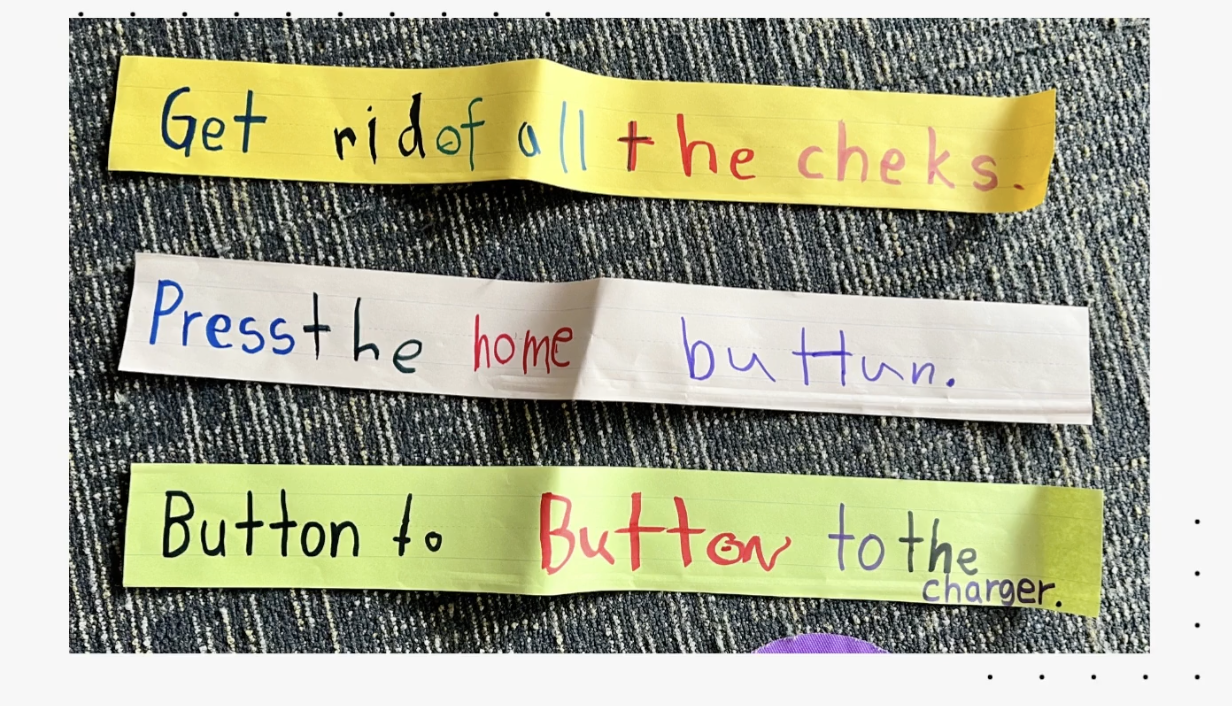
Button to Button: How to hug and hold your device. The home button on your belly button. 

Face planting: when at the table or on the carpet, put the device gently face down on the floor to wait for instructions. 

ONLY hands: no other body parts

Only YOUR device:  You can only touch your own device. Help your friends verbally. 

Only with permission from an adult:  Only go on an app with adults' permission, at home, and at school. 

Pop Ups: Here is the link to the poster template on Canva.

When you see a pop-up, STOP, and show a teacher. (New Entries and Year 1's)

Older students: Teach Common pop-ups that students can act on by themselves. 

Photography: 

Students need to learn which photos are appropriate. The first thing they learn before even taking a photo, is: "Can I take your photo?" Students practice asking each other, then take a photo, after taking the photo ask if they like this picture or should you take another one. Equip students with words. Teach students to make sure photos are clear and not blurry. Remember anyone can see the photo and it should be representing your best self. Are you willing for everybody to see it? Students then practice taking selfies. Collect ideas of what is acceptable or not acceptable photos. Students video themselves explaining what is appropriate photos. From year 2 onwards learn about which images I can use from the Internet. 

What's done is done:

Think of visual cues to know what "Done" looks like. Create a routine or checklist to help the students. Visual cues of the green tickbox as little ones forget to use it. 

Steps to be truly done. 
INFORMATION LITERACY
information literacy includes the ability to identify, find evaluate, and use information effectively. 
Teach students if images are real or fake? Students learn to think about what they see. 
Example: Looking at this image. Would it be safe for the girl to sit next to the lion like that? Do you think she is really there reading with the lion? Or do you think somebody put two pictures together to create this image? 
Here is another little activity students can do to show their understanding of what real of fake images are. Students circle the image they think is definitely not a real image, then show the one that might be real, and then find the one that is definitely a real dog image.
Then you could show students how easy it is to change images, using Canva, and change one of the body parts. 

Here is a link to safe photo options: https://www.photosforclass.com/ This site automatically adds attribution to images used. Students then learn about which images are okay to use. 


What a great workshop with lots of practical ideas. Great ideas on how to introduce digital usage to our youngest students. This will help us when we start thinking about what digital expectations students in each phase should accomplish before they move on to the next year's group. 


Thursday, 20 October 2022

Working with Tamariki with ADHD: Module 1

 I had the priviledge of attending an online workshop with Tracey Rountree, an ADHD expert. It was a very informative session. I will share the main points that stood out for me. If you have ADHD students in your class, read this...

ADHD can be broken into 3 predominant types: 

1. Primarily Inattentive - hard to tune out distraction, task jumping, not finishing work, appear bored easily, seems like not listening, very interest driven. More visible in girls. 

2. Primarily Hyperactive/Impulsive - Parts of them always moving, chatterboxes, energetic, fidgets, ants in their pants, hard to stop. More visible in boys. 

3. Combined type - inconsistent and often labelled as naughty. 

ADHD students tend to be on the higher end of IQ. Can be quite creative and could include Dyslexia, Dyscalculia etc.

Characteristics of ADHD children: 

Inattentive or hyperactive

Impulsive - not thinking of consequences, does not think of others, unablel to control themselves, mood swings, low frustration tolerance.

Inflexible - very black and white, don't understand tease of sarcasm, very aware of what is fair and just, sees things from their point of view and assumes everyone thinks like them. 

Hyper focus - has very strong interests in certain things, able to focus on special interest

Poor social skills-not able to read subtle social cues or recognise that their behaviour or actions can effect others. Not able to read facial expressions. Lack of boundaries, personal space and voice (noise) control.

Poor working memory-great long term memory, however, unable to hold information in mind to guide actions now or later. Hard to follow instructions or cope with multiple tasks. Slow response to direction (needs more time to process requests and reminders).

Disorganised - trouble sequencing what comes next or where to start. Often looses things to complete task. Issues with motivation - unable to stay on task. Loose track of time. 

Emotions -quick to get frustrated by minor annoyances. Worry too much or too long about small things. Have trouble calming down. Overly sensitive to critique. Feel excessive urgency to get/do something. 

ADHD RARELY APPEARS ON IT'S OWN: Often OCD, ODD, Sensory Processing Disorder, Tics (vocal or motor), depression, anxiety, language and learning disabilities. 

Solutions: Medication, diet, excersise. 

How will this affect me in the classroom? 

Have realistic expectations, recognise strengths. 

Priority - work on 1 or 2 issues at a time. 

Prepare - plan ahead - set procedures in place for dealing with a situation. 

Relate

Positvity

Put accomodations in place eg. allow for movement.

Training -give alternative words or actions.

Discipline - least effective - if necessary - use immediately for impact. 

Reinforce positive behaviour. 

Everyday strategies:

Build a relationship with them.

Gather info

Look for triggers

Define the expected behaviour do not assume they know. 

Post session or class rules - discuss clearly as well as consequences. 

Be prepared - plan basic activties and consequences as well as a plan B/C/D.

Redirect their attention rather than reprimand. 

Frequent positive feedback

Immediate reward and consequences

Use simple lang

verbal reminders

allow for extra movements

give appropriate supervision

give them more responsibility

ignore minor behaviours

don't back them into a corner

don't judge or get emotiona; - stay calm and stick to the facts

get them  to think about the effect of their behaviour

give them acceptable responses to use next time

don't take things personally

Make sure all of the team is on the same page - consistent language and consequences.


Monday, 17 October 2022

Digital Learning Circle

 Last term, I initiated a learning circle for improving our use of Seesaw. We are at the moment 4 teachers taking part in this. We get together for 30min every 3 weeks and set ourselves a tiny achievable goal in order to improve how we use Seesaw. We look at each other's Class Journals and highlight the posts that represent good quality posts, as well as share some ideas on how to achieve our goals. It has been really great to have this opportunity to discuss Seesaw with these ladies. 

Minutes

My goal this cycle is: By 3 Nov have pictures up of how to store devices. And teach students how to respond to our comments. 

I need to check that Totara students know how to read their message notifications and act on them.  I will share this with Sam and create space in our timetable to teach this to the students. 

Another thing I would like to do this term is to sit with Erin and create a plan of how to transition the current year 3's onto Chromebooks. My thinking is that we provide some loan chromes to their class and that they get the opportunity to log in to the device using their email address (I will ask Gretchen if it will be possible to have their emails generated earlier). In order for them to familiarise themselves with the keyboard, they can practice Typing Club and how to log into Seesaw. It will then be great if Erin (karaka) can then create a space in their timetable to talk about some aspects of the Kawa of Care, e.g. how to carry a Chromebook, how to pack it away and put it on charge, how to log out before packing it away etc. 


My next steps: 

Take some photos of the device cabinet in Totara to show how we store our devices. 

Create space on our timetable to teach how to respond to comments. 

Book a time in with Gretchen and Erin to discuss transitioning year 3's onto Chromebooks. 


Steplab Intensive